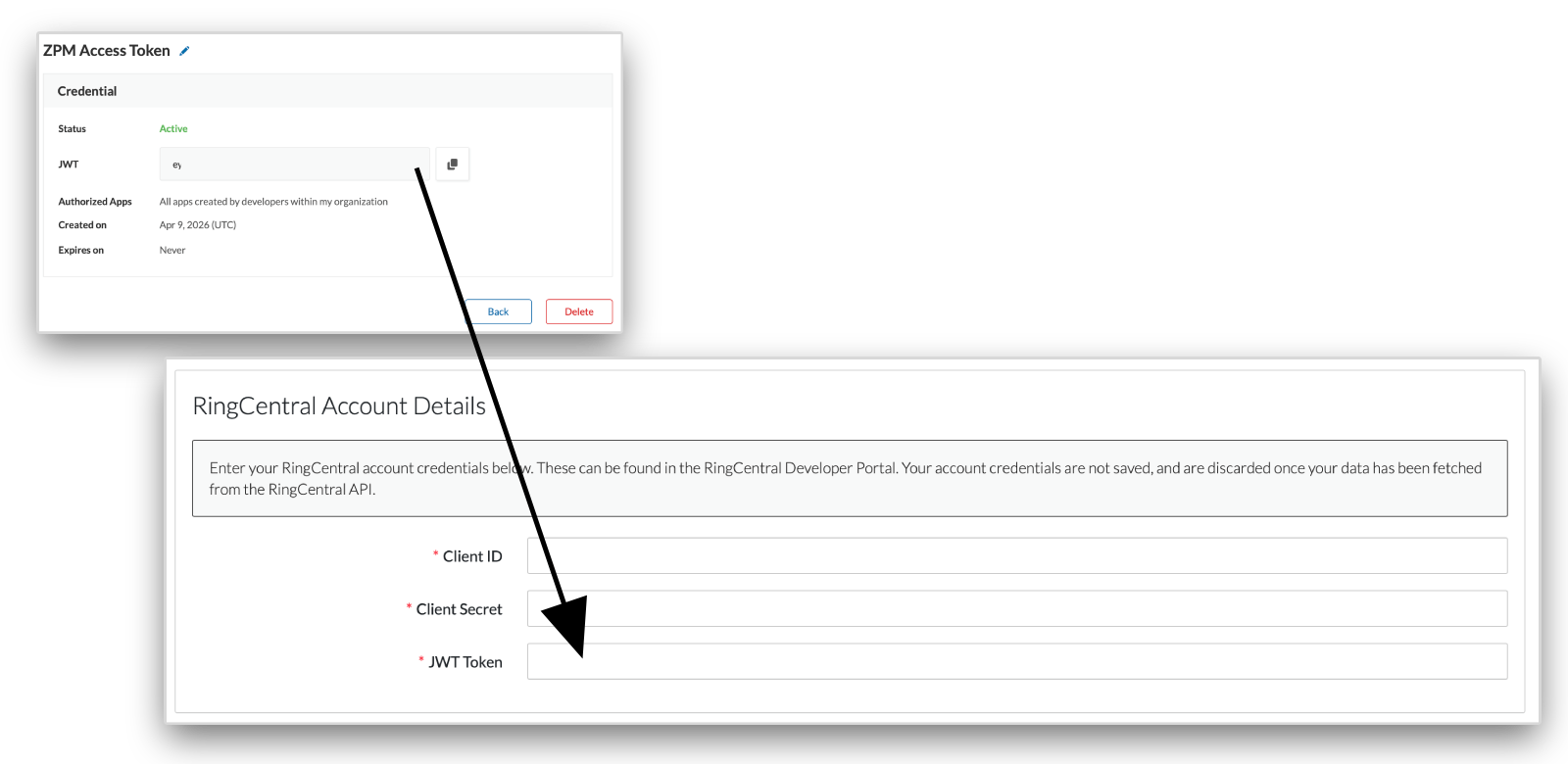
To allow ZIRO Platform to access your RingCentral environment for a migration, you will need to provide a Client ID, Client Secret and JWT Token. This information can be gathered from the RingCentral Developers portal and will not be saved by the ZIRO Platform once the import process is over.
Create an application in the RingCentral Developers portal
This section covers generating a Client ID and Secret
- Go to the Register an Application page in the RingCentral Developers portal and connect with a RingCentral administrator account.
- Select “REST API” and click “Next”.
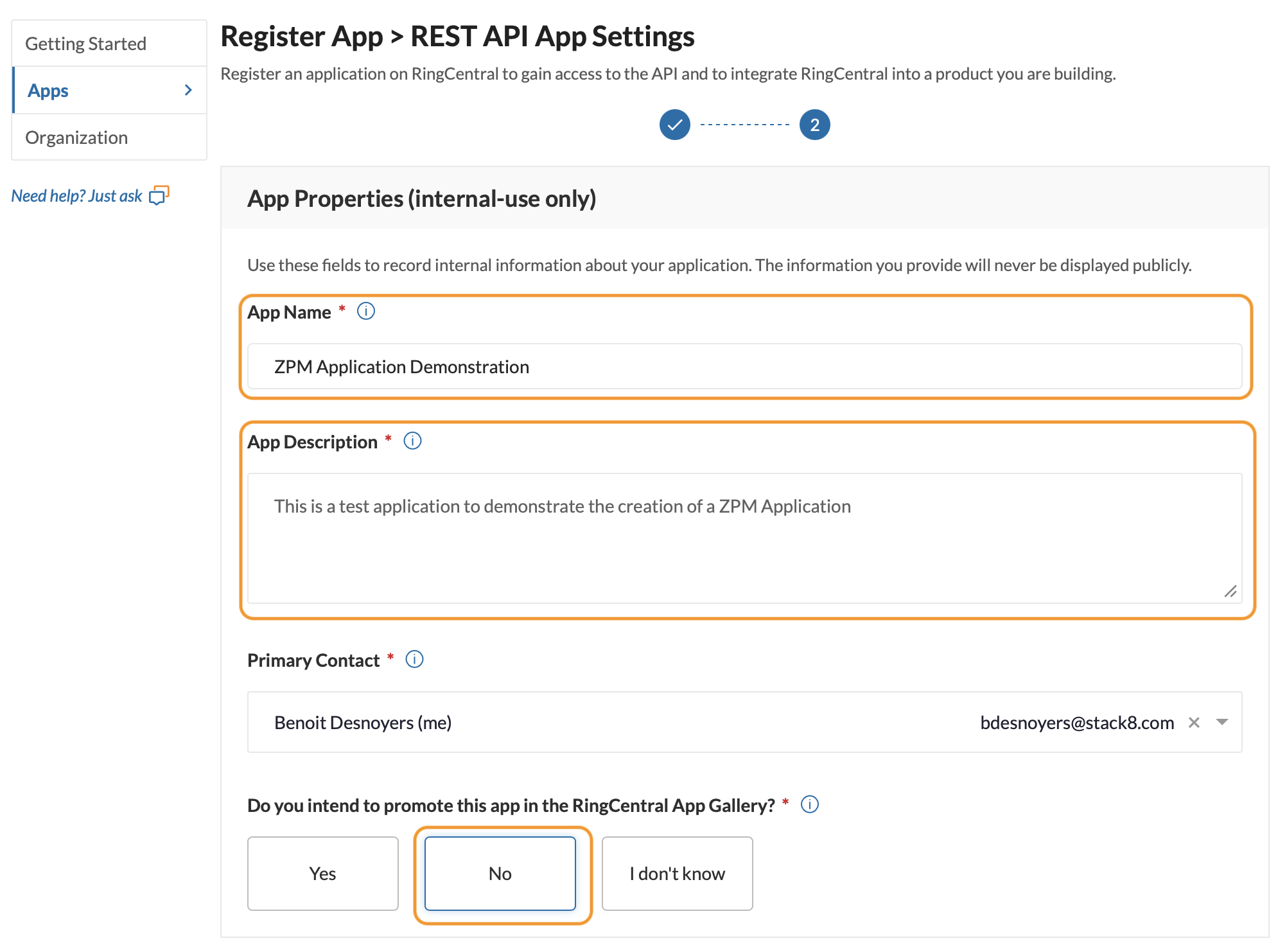
- Fill out the following required fields:
- App Name
- App Description
- Do you intend to promote this app in the RingCentral App Gallery? Select “No”
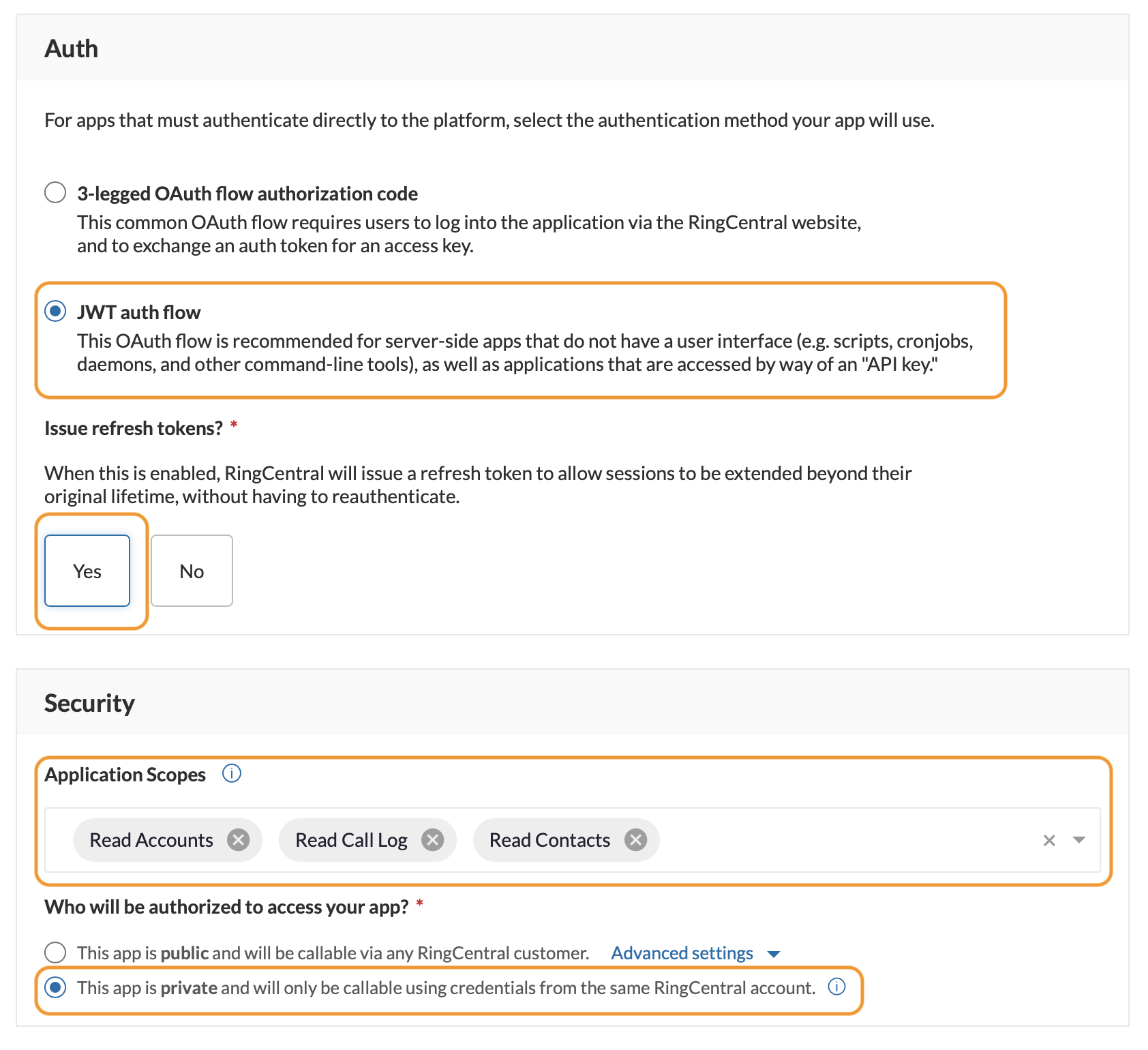
- Under Auth, select the following required fields:
- JWT auth flow
- Issue refresh tokens? Select “Yes”.
- Under Security, add the following items to the Application Scope:
- Read Accounts
- Read Call Log
- Read Contacts
- Under Security, make sure the field “This app is private and will only be callable using credentials from the same RingCentral account” is selected and click “Create”.
- A confirmation dialogue should appear, click “OK”. You will be redirected to a new page.
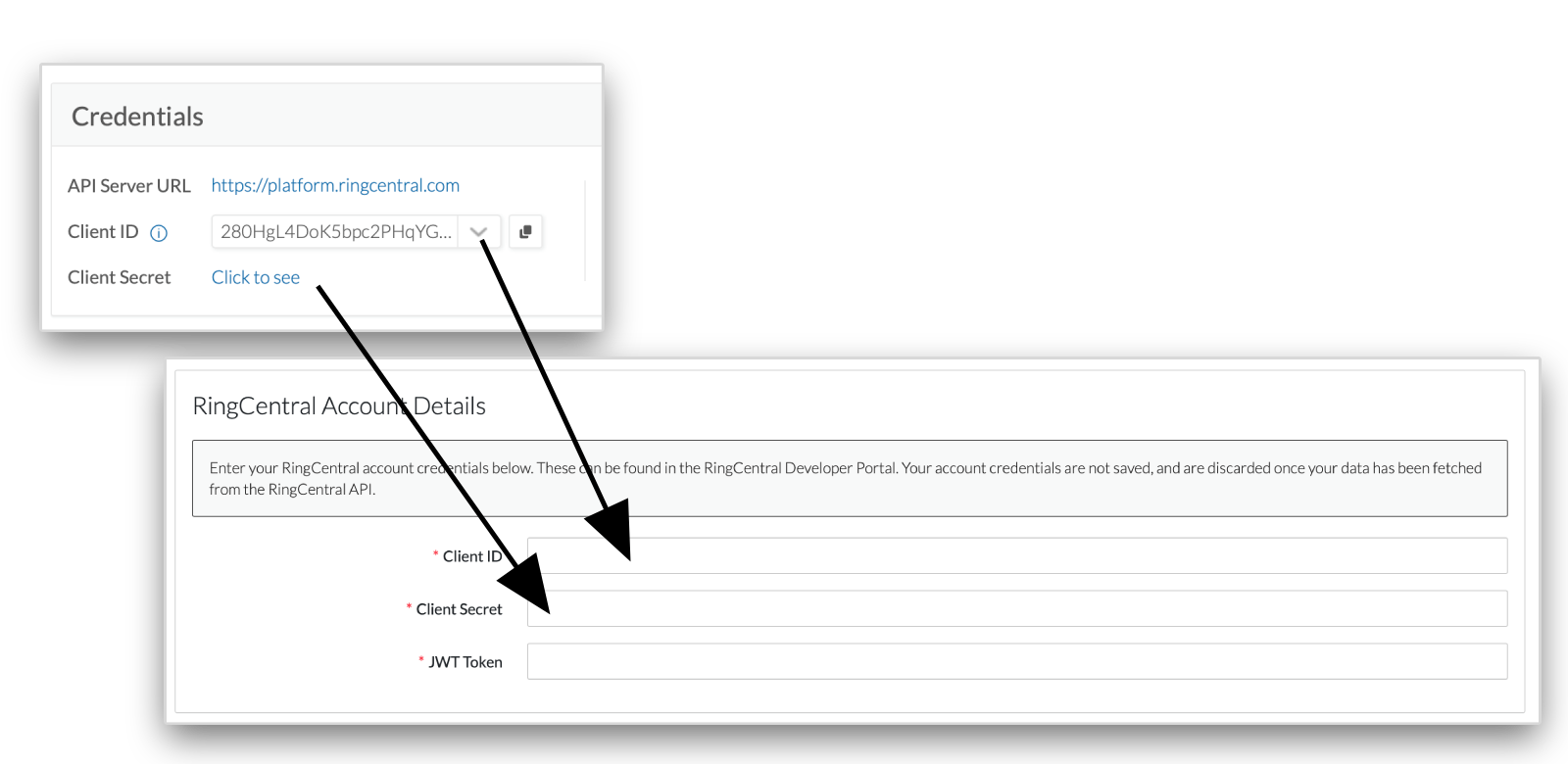
- From the new page, copy the Client ID and Client Secret and paste them into ZP. You may need to click on “Click to see” to view the Client Secret.
Create a JWT token in the RingCentral Developers portal
This section covers generating the JWT token required by the ZIRO Platform.

- Go to the Credentials section of the RingCentral Developers portal and connect with a RingCentral administrator account.
- Click on “Create JWT”.
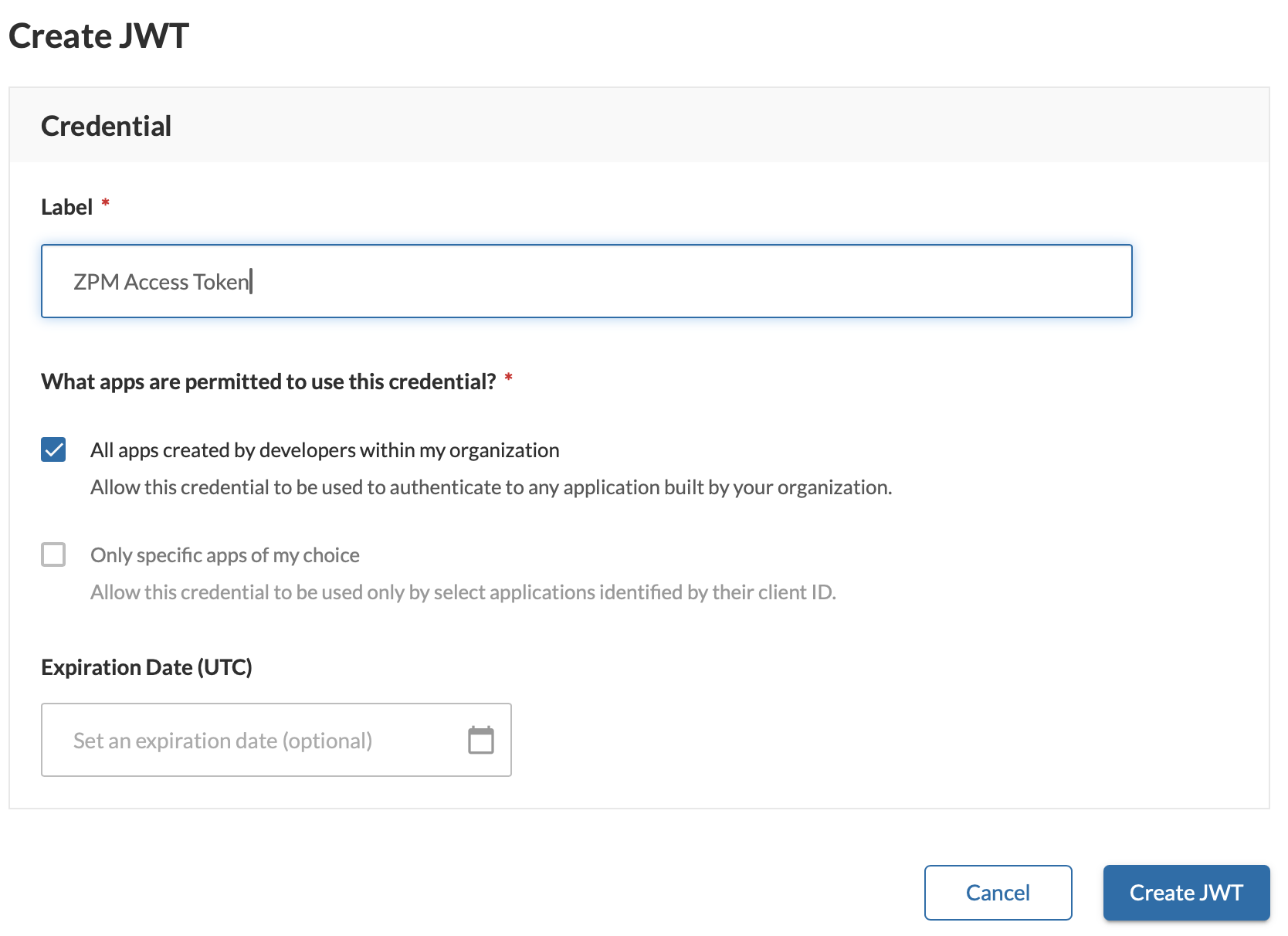
- Fill out the required fields and click “Create JWT”:
- Label
- Select “All apps created by developers within my organization”
- Copy the content of the JWT field and paste it in the JWT Token field in ZIRO Platform.